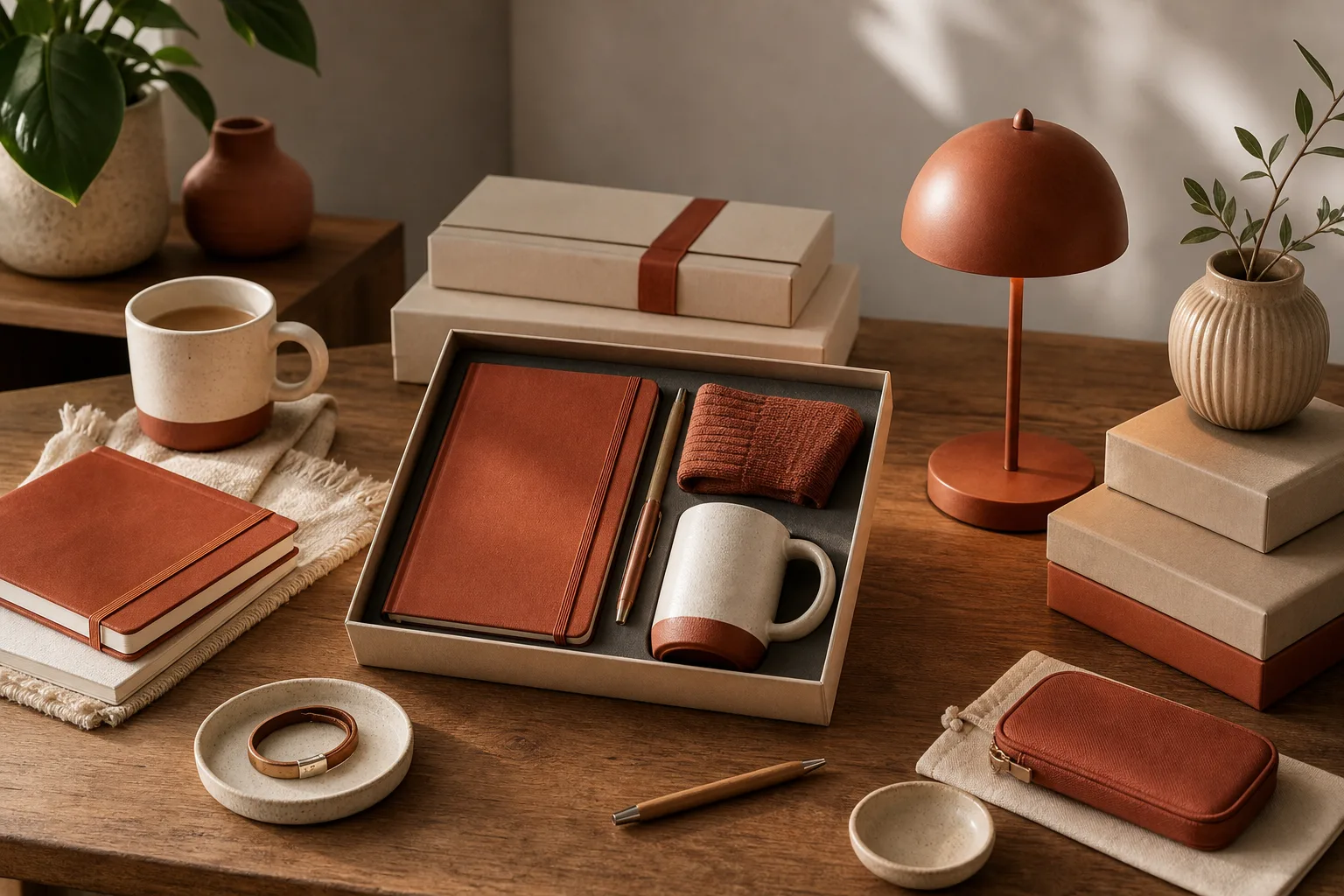
Regular WooCommerce grouped products allow you to present several existing items on a single product page. The customer can then choose the items and quantities they want. This structure works well for a collection, a coordinated series, or a selection of complementary accessories.
However, it doesn’t replace variations or a true bundle sold at a single price. To keep a clear catalog, first choose the right product type. Then you can create the group, select its components, and verify how it displays before publishing.
Understanding the role of a grouped product
A grouped product is a parent page that brings together several products already created. WooCommerce notes that visitors can add multiple products shown on that page to their cart in one operation. Each item, however, remains a distinct product in your catalog. WooCommerce documentation on product management clarifies that the grouped product does not have its own price or its own stock.
In practice, the parent serves to guide the purchase. The components carry the important commercial data: price, availability, product ID, weight, taxes, and, if needed, variations.
When this format is useful
- You sell a collection of books, but each book can also be bought separately.
- You offer a selection of accessories compatible with a main product.
- You group furniture from the same series without forcing the customer to buy the whole set.
- You want to simplify discovery of complementary products without creating a new overall price.
A grouped product therefore makes navigation easier. It doesn’t impose a fixed composition and doesn’t turn the components into a single item.
Don’t confuse grouped, variations, and bundle
The choice of product type affects price, stock, shipping, and the shopping experience. A mistake at this stage often creates pages that are hard to maintain.
| Business need | Suitable structure |
|---|---|
| Present several items purchasable separately on the same page | Grouped product |
| Sell the same item in sizes, colours, or formats | Variable product |
| Sell a fixed set as a single offer, with a single price | Bundles or pack extensions |
| Let the customer build a product step by step | Composite product |
Variations apply to a single product listing
Use a variable product when the same SKU exists in multiple options, such as a mug offered in two sizes or a sweater available in several sizes. Each variation can have its own price, image, and stock. Before creating variations, take the time to structure WooCommerce product attributes for variations and filters.
Conversely, a grouped product isn’t meant to choose a version of the same item. It brings together several standalone products.
A bundle sells an offer, not just a selection
If you want to sell a fixed kit at a single price, with a discount calculated for the whole, the native grouped product is not the right tool. WooCommerce distinguishes grouped products from bundle extensions: bundles are for sets sold as a package, while groups let you add several similar products from the same page. The WooCommerce guide on different ways to group products helps compare these uses.
A composite product goes further. It’s appropriate when the customer must choose an item at each step, for example a case, a processor, and memory for a custom computer. WooCommerce recommends a bundle when the contents are fixed, and a composite product when the customer’s choices must structure the configuration. The official comparison between bundles, composite products, and options confirms this distinction.
Create a grouped product in WooCommerce
Start by preparing the components. Each item should ideally have a clear title, a price, an image, and a sufficient description. Also check its availability before adding it to the group.
- In the admin, open Products, then add a new product.
- Give the parent a name that describes the selection, for example «Minimalist Desk Collection».
- In the product data panel, choose Grouped product.
- Add a description that explains the relationship between the items and the type of choice offered.
- Publish or save the parent product.
- Then open the section Linked Products.
- In the grouped products field, search for and select the desired components.
- Reorder them by drag-and-drop to present the most important first.
- Update the listing, then view it as a customer.
WooCommerce lets you add existing products to the group and change their order from this section. That order becomes the one shown on the public product page. The WooCommerce Product Management Guide also covers catalog settings and the product editor.
Properly manage component pricing and stock
The parent has no overall price or stock quantity. You must therefore set prices and inventory on each component. This separation prevents double-counting stock when an item is bought alone or from the grouped product page.
Check the following points for each added product:
- a regular price, and a sale price only if it’s actually offered;
- an up-to-date stock status;
- a tracked quantity when your inventory requires it;
- backorder rules consistent with your fulfillment capacity;
- a tax class and shipping details that are accurate.
Grouped products display limited inventory options because stock is tracked on the products that make them up. The WooCommerce product data panel reference confirms this behavior. To set up reliable thresholds, alerts, and statuses, also see our guide on manage WooCommerce stock without selling unavailable products.
Avoiding Price Inconsistencies
Don’t present a group as a discount if each component simply keeps its usual price. If you want to encourage buying multiple items, frame the selection as a convenient way to build a set.
Conversely, if a single reduced overall price is the main promise, choose a bundle solution that calculates and clearly displays that offer. The customer must understand whether they are buying separate items or a kit sold as one product.
Keep the catalog clear
The same component can belong to more than one group. This flexibility helps create seasonal selections or themed pages without duplicating products. However, limit similar groups. Two pages that bring together almost the same items can complicate navigation and maintenance.
Also give each listing a clear role:
- the individual product explains the item and its features;
- the grouped product explains why the items go well together;
- the category groups products according to a broader logic;
- the bundle, if offered, presents a distinct commercial offer.
Choose a featured image unique to the group. It should represent the selection, rather than mechanically repeat the image of a single component. Then add a short introduction and, if helpful, a line under each component on its individual listing.
Pre-publication checks
Test the experience as a customer on both desktop and mobile. Add a single component, then several components, and check the cart. Then verify prices, taxes, quantities, and shipping fees according to your settings. Our article on WooCommerce taxes and displayed prices can help you validate this aspect.
Finally, simulate a case where a component is unavailable. The group should remain clear and never imply that an out‑of‑stock item can be ordered. This last check protects both your inventory and your shop’s credibility.
A well-designed grouped product is not a shortcut to create a bundle. It’s a catalog structure that helps your visitors see, compare, and add multiple standalone products without losing their bearings.









